How to convert image to video with AI.
A practical walkthrough for turning a single product photo into a cinematic video — prompts, ratios, and the small details that make output feel premium.
Published · May 28, 2026
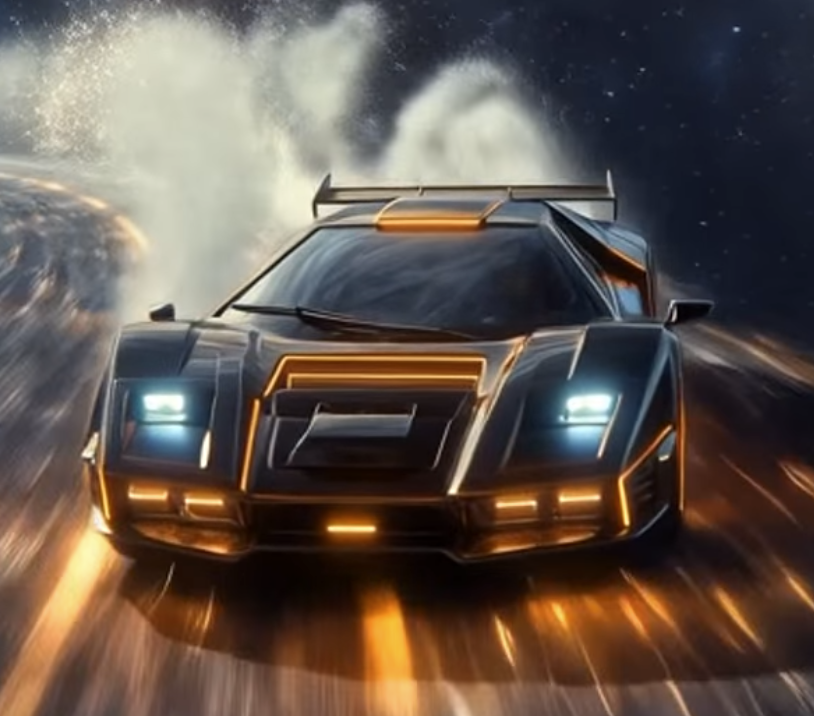
Source
Transform images to short videos adding motion and storytelling.
Today, static images no longer have to stay still. With AI-powered image-to-video technology, you can generate videos out of a single image, creating engaging, dynamic clips that capture attention.
Whether you want to convert photos to videos with AI for social media, marketing, or personal projects, the process has never been easier.
This is the exact process we use inside imagemotion. No magic, no jargon.
Step 01
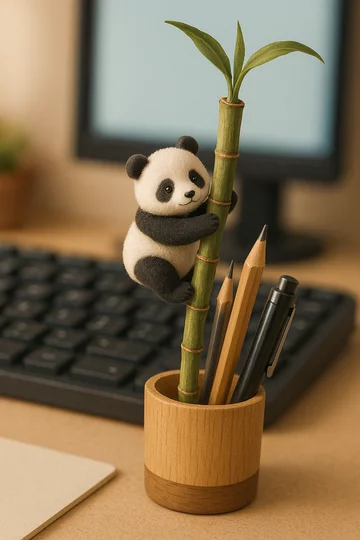
Start with a photo
AI video models extrapolate motion from the pixels you give them. A tightly cropped photo leaves nothing to move into. Before you upload, look for these qualities:
- Clean separation between subject and background.
- Real light direction — even soft window light is fine. Flat phone-flash photos collapse on camera moves.
- Honest color Heavy filters confuse the model; the cleaner the source, the more believable the output.
- Start Frame The model needs to know what matters in the frame. Strong subject focus leads to more intentional camera movement and motion generation.
Step 02
Pick the camera move before the prompt
Most AI video tools let you describe what the camera does. Decide this first — it changes everything else.
M01
Slow push-in
Dramatic. Best for hero products and packaging reveals.
M02
Orbit
Half-circle. For objects with a good side on every angle.
M03
Parallax dolly
Sideways slide with foreground depth. Reads expensive.
M04
Static + subject motion
Camera holds. The steam rises. The model walks.
Step 03
Write the prompt like a shot list, not an instruction
AI video models reward concrete, sensory language. Skip "make it cool". Describe the scene the way a director would describe a single shot to a DP.
A working template:
Prompt template
[camera move] on [subject], [lighting], [environment] [mood], [duration].Example:
Working prompt
Slow cinematic push-in on a child astronaut looking out of a spacecraft window, soft cinematic light from the window illuminating the face, with outer space visible beyond the glass, curious and wonder-filled, 6 seconds.
Step 04
Match the ratio to the platform, not the source
Don't be afraid of letting the model reframe. A horizontal product shot can become a stunning 9:16 vertical when the AI re-imagines the surrounding scene.
9:16
TikTok · Reels · Shorts · Stories
1:1
In-feed Instagram & Facebook
4:5
Feed posts that take real estate
16:9
YouTube pre-roll, in-stream, CTV
Step 05
Treat the first take as a sketch
The first generation tells you what the model wants to do with your image. Use it as information. Re-run with a small change — a different lighting word, a shorter duration, a more specific camera move — and you'll converge on a hero clip within three to five attempts.
The 60-second checklist
- Source photo is high-resolution with space around the subject.
- You picked one camera move before you started typing.
- Prompt names a subject, a light, a mood and a duration.
- Aspect ratio matches the channel you're shipping to.
- You ran at least three takes before committing.
Doing this in imagemotion
Inside the studio, drop a product photo into a new project, pick Video in the floating generator, choose your ratio and duration, and paste the prompt. The same reference image stays locked across every generation. When a clip lands, hit download — it's already encoded for the platform you targeted.
im
The imagemotion team
We write about the craft of advertising at the edge of generative tools — from the studio in Germany.